> ## Documentation Index
> Fetch the complete documentation index at: https://docs-v1.agno.com/llms.txt
> Use this file to discover all available pages before exploring further.
# Playground
> **Agno provides an intuitive interface for testing and interacting with your AI agents.**
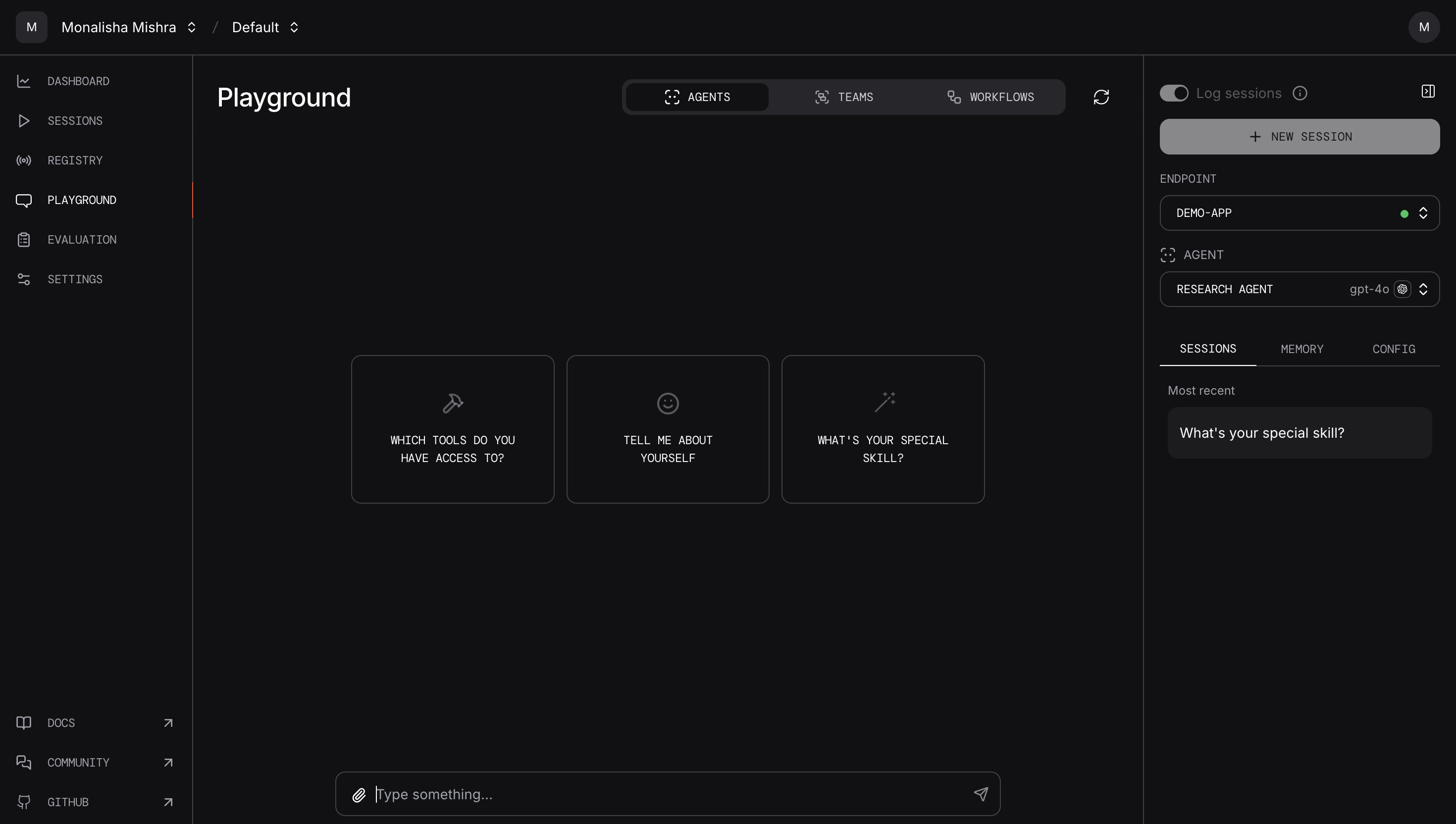 The Playground gives a robust interface to test your agentic systems with extensive features.
* **Streaming Support**: Real-time response streaming and intermediate states back to the user.
* **Session History**: Visualize conversation history right in the playground.
* **User Memory**: Visualize user details and preferences across conversations.
* **Configuration**: Comprehensive configuration interface allowing you to see agent parameters, model settings, tool configurations.
* **Reasoning Support**: Built-in support for detailed reasoning traces displayed in the playground interface.
* **Human in Loop Support**: Enable manual intervention in agent workflows with specialized human oversight and approval.
* **Multimodal Support**: Support for processing and generating text, images, audio, and other media types.
* **Multi-Agent Systems**: Support for multi-agent teams and workflows.
## Interact with your agents Locally
```python playground.py theme={null}
from agno.agent import Agent
from agno.models.openai import OpenAIChat
from agno.playground import Playground
from agno.storage.sqlite import SqliteStorage
from agno.tools.duckduckgo import DuckDuckGoTools
agent_storage: str = "tmp/agents.db"
web_agent = Agent(
name="Web Agent",
model=OpenAIChat(id="gpt-4o"),
tools=[DuckDuckGoTools()],
instructions=["Always include sources"],
# Store the agent sessions in a sqlite database
storage=SqliteStorage(table_name="web_agent", db_file=agent_storage),
# Adds the current date and time to the instructions
add_datetime_to_instructions=True,
# Adds the history of the conversation to the messages
add_history_to_messages=True,
# Number of history responses to add to the messages
num_history_responses=5,
# Adds markdown formatting to the messages
markdown=True,
)
news_agent = Agent(
name="News Agent",
model=OpenAIChat(id="gpt-4o"),
tools=[DuckDuckGoTools(search=True, news=True)],
instructions=["Always use tables to display data"],
storage=SqliteStorage(table_name="news_agent", db_file=agent_storage),
add_datetime_to_instructions=True,
add_history_to_messages=True,
num_history_responses=5,
markdown=True,
)
playground_app = Playground(agents=[web_agent, news_agent])
app = playground_app.get_app()
if __name__ == "__main__":
playground_app.serve("playground:app", reload=True)
```
Remember to export your `OPENAI_API_KEY` before running the playground application.
Make sure the `serve()` points to the file that contains your `Playground` app.
Authenticate with [agno.com](https://app.agno.com) so your local application can let agno know which port you are running the playground on.
Check out [Authentication guide](/how-to/authentication) for instructions on how to Authenticate with Agno.
No data is sent to agno.com, all agent data is stored locally in your sqlite database.
Install dependencies and run your playground server:
```shell theme={null}
pip install openai duckduckgo-search sqlalchemy 'fastapi[standard]' agno
python playground.py
```
* Open the link provided or navigate to `http://app.agno.com/playground` (login required).
* Add/Select the `localhost:7777/v1` (v1 is default prefix) endpoint and start chatting with your agents!
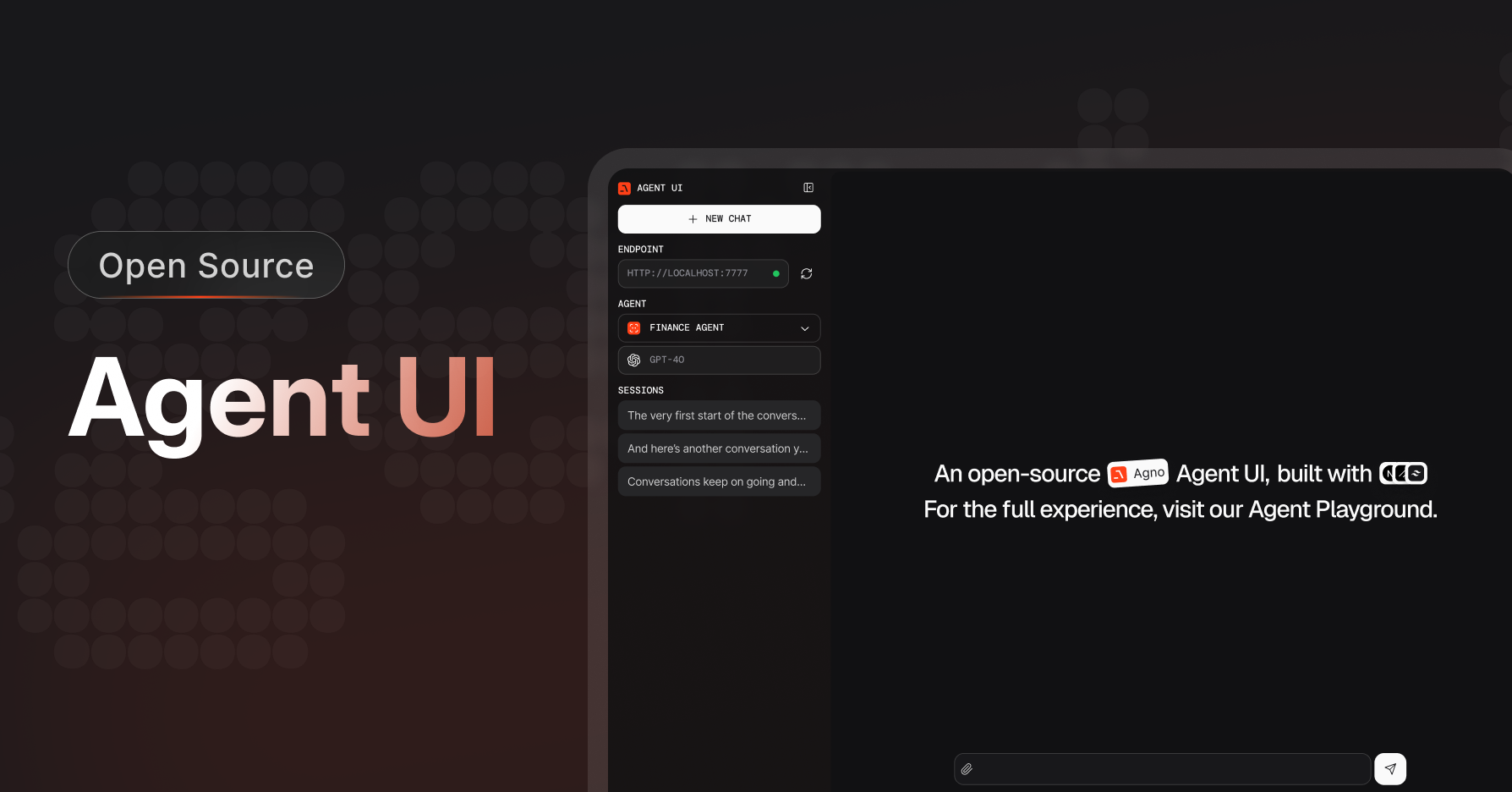
Looking for a self-hosted alternative? Check out our [Open Source Agent UI](https://github.com/agno-agi/agent-ui) - A modern Agent interface built with Next.js and TypeScript that works exactly like the Agent Playground.
The Playground gives a robust interface to test your agentic systems with extensive features.
* **Streaming Support**: Real-time response streaming and intermediate states back to the user.
* **Session History**: Visualize conversation history right in the playground.
* **User Memory**: Visualize user details and preferences across conversations.
* **Configuration**: Comprehensive configuration interface allowing you to see agent parameters, model settings, tool configurations.
* **Reasoning Support**: Built-in support for detailed reasoning traces displayed in the playground interface.
* **Human in Loop Support**: Enable manual intervention in agent workflows with specialized human oversight and approval.
* **Multimodal Support**: Support for processing and generating text, images, audio, and other media types.
* **Multi-Agent Systems**: Support for multi-agent teams and workflows.
## Interact with your agents Locally
```python playground.py theme={null}
from agno.agent import Agent
from agno.models.openai import OpenAIChat
from agno.playground import Playground
from agno.storage.sqlite import SqliteStorage
from agno.tools.duckduckgo import DuckDuckGoTools
agent_storage: str = "tmp/agents.db"
web_agent = Agent(
name="Web Agent",
model=OpenAIChat(id="gpt-4o"),
tools=[DuckDuckGoTools()],
instructions=["Always include sources"],
# Store the agent sessions in a sqlite database
storage=SqliteStorage(table_name="web_agent", db_file=agent_storage),
# Adds the current date and time to the instructions
add_datetime_to_instructions=True,
# Adds the history of the conversation to the messages
add_history_to_messages=True,
# Number of history responses to add to the messages
num_history_responses=5,
# Adds markdown formatting to the messages
markdown=True,
)
news_agent = Agent(
name="News Agent",
model=OpenAIChat(id="gpt-4o"),
tools=[DuckDuckGoTools(search=True, news=True)],
instructions=["Always use tables to display data"],
storage=SqliteStorage(table_name="news_agent", db_file=agent_storage),
add_datetime_to_instructions=True,
add_history_to_messages=True,
num_history_responses=5,
markdown=True,
)
playground_app = Playground(agents=[web_agent, news_agent])
app = playground_app.get_app()
if __name__ == "__main__":
playground_app.serve("playground:app", reload=True)
```
Remember to export your `OPENAI_API_KEY` before running the playground application.
Make sure the `serve()` points to the file that contains your `Playground` app.
Authenticate with [agno.com](https://app.agno.com) so your local application can let agno know which port you are running the playground on.
Check out [Authentication guide](/how-to/authentication) for instructions on how to Authenticate with Agno.
No data is sent to agno.com, all agent data is stored locally in your sqlite database.
Install dependencies and run your playground server:
```shell theme={null}
pip install openai duckduckgo-search sqlalchemy 'fastapi[standard]' agno
python playground.py
```
* Open the link provided or navigate to `http://app.agno.com/playground` (login required).
* Add/Select the `localhost:7777/v1` (v1 is default prefix) endpoint and start chatting with your agents!
Looking for a self-hosted alternative? Check out our [Open Source Agent UI](https://github.com/agno-agi/agent-ui) - A modern Agent interface built with Next.js and TypeScript that works exactly like the Agent Playground.
 ### Get Started with Agent UI
```bash theme={null}
# Create a new Agent UI project
npx create-agent-ui@latest
# Or clone and run manually
git clone https://github.com/agno-agi/agent-ui.git
cd agent-ui && pnpm install && pnpm dev
```
The UI will connect to `localhost:7777` by default, matching the Playground setup above. Visit [GitHub](https://github.com/agno-agi/agent-ui) for more details.
Facing connection issues? Check out our [troubleshooting guide](/faq/playground-connection)
### Get Started with Agent UI
```bash theme={null}
# Create a new Agent UI project
npx create-agent-ui@latest
# Or clone and run manually
git clone https://github.com/agno-agi/agent-ui.git
cd agent-ui && pnpm install && pnpm dev
```
The UI will connect to `localhost:7777` by default, matching the Playground setup above. Visit [GitHub](https://github.com/agno-agi/agent-ui) for more details.
Facing connection issues? Check out our [troubleshooting guide](/faq/playground-connection)