Documentation Index

Fetch the complete documentation index at: https://docs-v1.agno.com/llms.txt

Use this file to discover all available pages before exploring further.

If you want to inspect your pgvector container to explore your storage or knowledge base, you can use TablePlus. Follow these steps:

Step 1: Start Your pgvector Container

Run the following command to start a pgvector container locally:
docker run -d \
  -e POSTGRES_DB=ai \
  -e POSTGRES_USER=ai \
  -e POSTGRES_PASSWORD=ai \
  -e PGDATA=/var/lib/postgresql/data/pgdata \
  -v pgvolume:/var/lib/postgresql/data \
  -p 5532:5432 \
  --name pgvector \
  agno/pgvector:16
  • POSTGRES_DB=ai sets the default database name.
  • POSTGRES_USER=ai and POSTGRES_PASSWORD=ai define the database credentials.
  • The container exposes port 5432 (mapped to 5532 on your local machine).

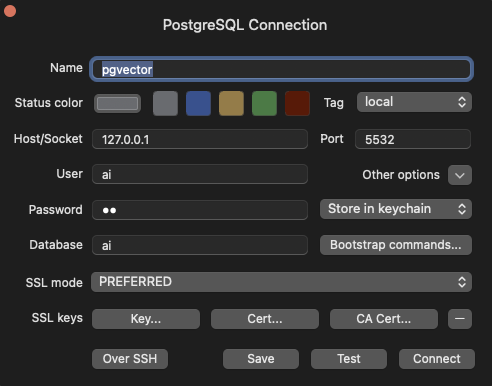
Step 2: Configure TablePlus

  1. Open TablePlus: Launch the TablePlus application.
  2. Create a New Connection: Click on the + icon to add a new connection.
  3. Select PostgreSQL: Choose PostgreSQL as the database type.
Fill in the following connection details:
  • Host: localhost
  • Port: 5532
  • Database: ai
  • User: ai
  • Password: ai